Change the Firestick country
& install
hidden
apps
Struggling to install hidden apps on your Firestick because of geo-restrictions? This guide shows how to change the country of your Fire TV and reach apps from other regions — through your Amazon account or a VPN.
✯ From €2.49/month. 7-day money-back guarantee ✯
Key points to remember
Two methods
Changing the Firestick country can be done either by editing the country settings on your Amazon account, or by using a VPN to fake a virtual location.
Apps unblocked
Once you change the Amazon location, apps reserved for other countries appear in the Appstore and install normally on your Fire TV.
Pros & limits
You reach uncensored content, but some streaming services know how to spot VPNs. Pick a reliable provider to keep that risk low.
Free VPNs? Risky
Free VPNs for Fire Stick are throttled, capped, and often less safe. The premium version of monVPN remains the recommended choice.
Change the country on your Amazon account
-
1
Sign in to your Amazon account.
-
2
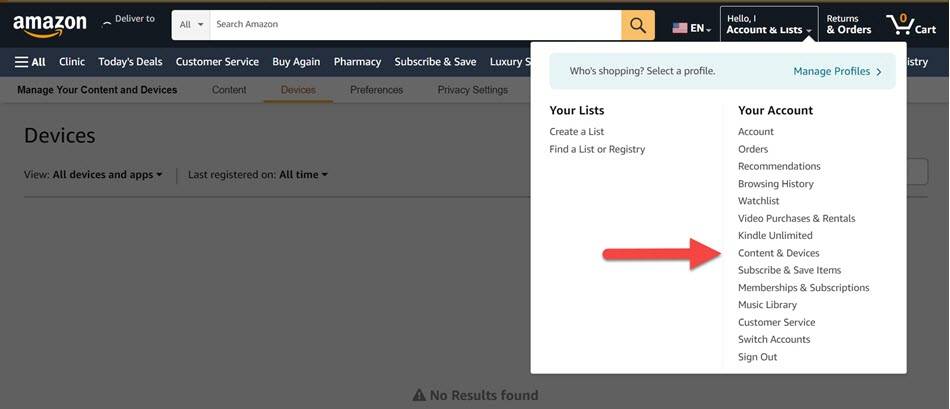
Open the Account & Lists menu.
-
3
Click Your Content and Devices.
-
4
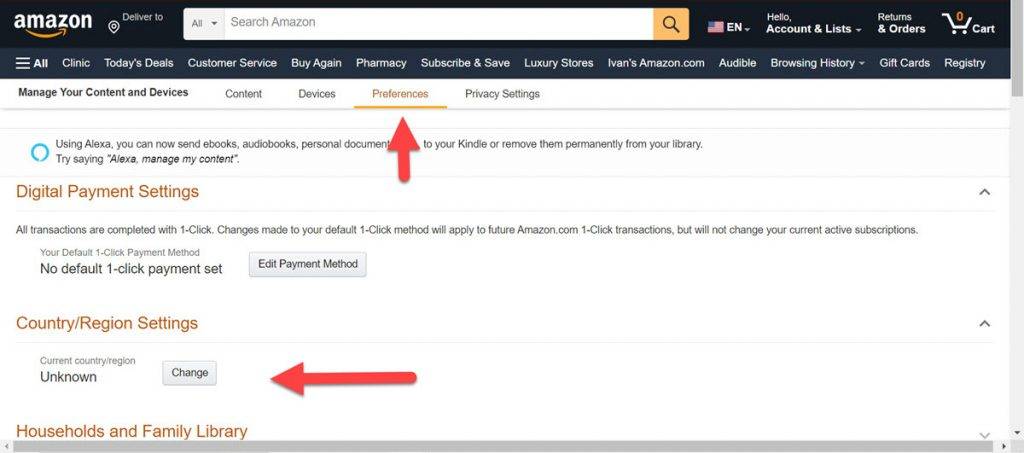
Select the Preferences tab, then under Country/Region, click Change.
-
5
Enter your new address, confirm with Update, then reboot the Firestick.
Use a VPN to change country virtually
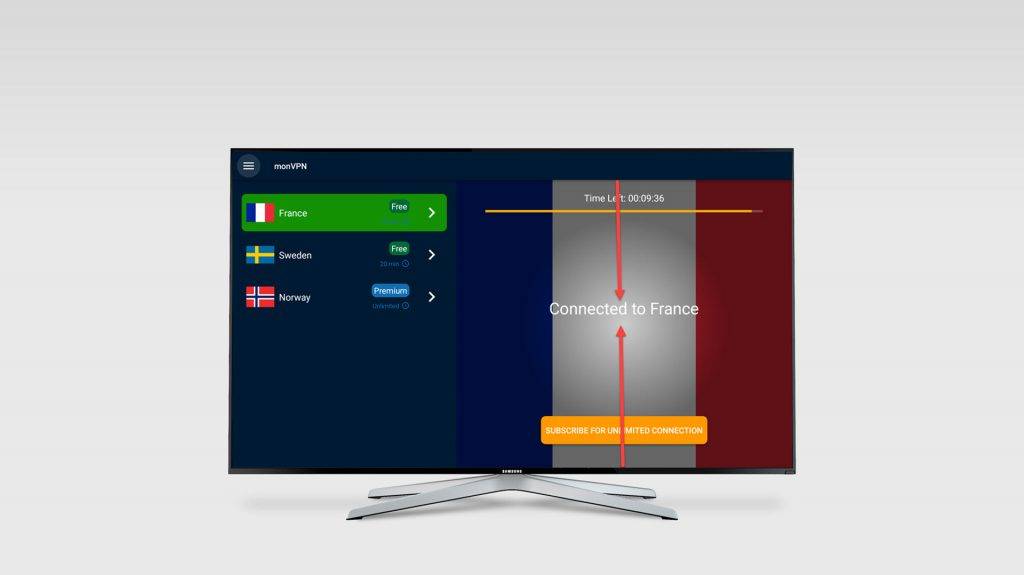
A VPN hides your real IP address and connects you to a server in another country. You take on a virtual location and reach the content available in that region.
To install monVPN on Firestick, download the app straight from the Amazon Appstore. Once installed, pick the country you want and connect with one click.
To keep using your other streaming services as usual, enable split-tunneling in monVPN — only the apps that need the VPN go through it.
-
1
Install
Download monVPN from the Amazon Appstore on your Firestick.
-
2
Pick a country
United States, United Kingdom, Germany — 40 countries to pick from in the app.
-
3
Split-tunneling
Route only specific apps through the VPN — others stay native.
-
4
Open
Open the app you want — it loads as if you were on site.
Install hidden apps on Fire TV
Via the Amazon account
Change the region of your Amazon account: apps from the target country appear straight in the Appstore and install like any other.
Via a VPN
Connect to a monVPN server in the country you want. Geo-restrictions go away and you can use the apps as if you were there.
What you should know
Uncensored content
By switching your virtual location you sidestep geo-restrictions on certain apps and sites. Shows, movies and programs that were unavailable at home become accessible again.
Detected by some services
A few platforms can identify VPNs and block access. Pick a reliable provider like monVPN — the premium version for Fire Stick keeps these risks low.
Firestick FAQ
How do I change the Firestick country? +
Two methods: change your Amazon account country in Your Content and Devices > Preferences > Country/Region, or install monVPN on the Firestick and connect to a server in the country you want.
How do I install hidden apps on Amazon? +
Hidden apps are the ones blocked because of where your Fire Stick is located. Either change the country on Amazon and install from the Appstore, or enable Apps from Unknown Sources in settings and sideload the APK from a trusted source.
Is it safe to change the Firestick country? +
Yes, but it can affect features and content availability. Some services are not offered in every country — check first that the apps you rely on stay reachable in the new region.
How do I switch back to my original country? +
Go back to Your Content and Devices on Amazon, pick your original country again, update your billing address and reboot the Firestick.
Is a free VPN enough on Fire Stick? +
Free VPNs for Fire Stick are usually limited in speed, data and reliability. For a smooth, secure experience, a paid service like the premium version of monVPN is the better choice.