Install monVPN v3 on Mac OS
Our Mac VPN client is built to be simple. Pick the build for your chip, drop it into Applications, and connect.
Install in two steps
-
1
Download and copy to Applications
Grab the monVPN v3 file matching your Mac:
Drag the file into the
Applicationsfolder. If you see "Warning: There was a dependency issue…" on Apple Silicon, contact us for help. -
2
Launch monVPN v3 and connect
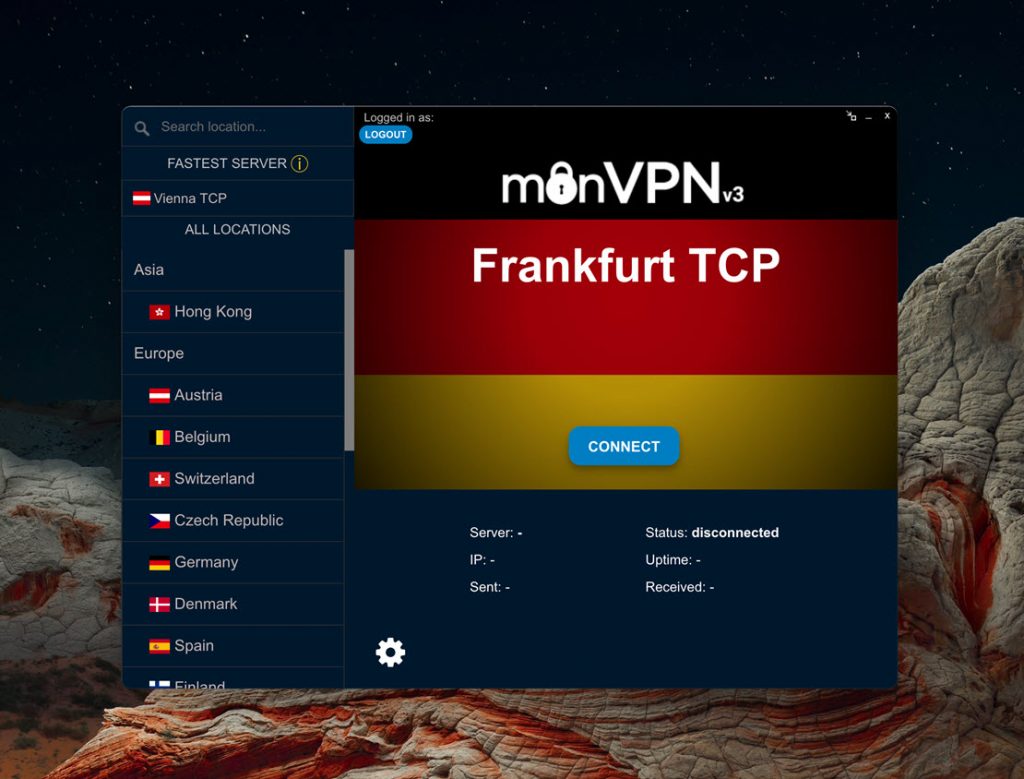
Open the app from Applications, enter your VPN credentials, pick a country and click Connect.
VPN credentials ≠ client area credentials
Your VPN credentials are different from your client area login. Find them in the client area → Services, by clicking your active VPN service. They are case-sensitive, so type them exactly as shown.
On macOS Ventura or later, disable IPv6 from your Mac's network settings → TCP/IP. See the IPv6 on Mac guide.
What the client looks like