Share the VPN on Windows 10 over Wi-Fi
Turn your PC into a virtual router: any device that joins its Wi-Fi hotspot will use the VPN's IP.
Devices that can't run a VPN
Some smart TVs, game consoles, Apple TV, Chromecast and other devices can't connect to a VPN on their own. The preferred way to cover them is to set the VPN up on a router.
If you don't have a compatible router, Windows 10 can act as a virtual router. Heads-up: just turning on the hotspot without explicitly authorizing the VPN adapter means the connected device won't use the VPN's IP.
5 steps to share the VPN
-
1
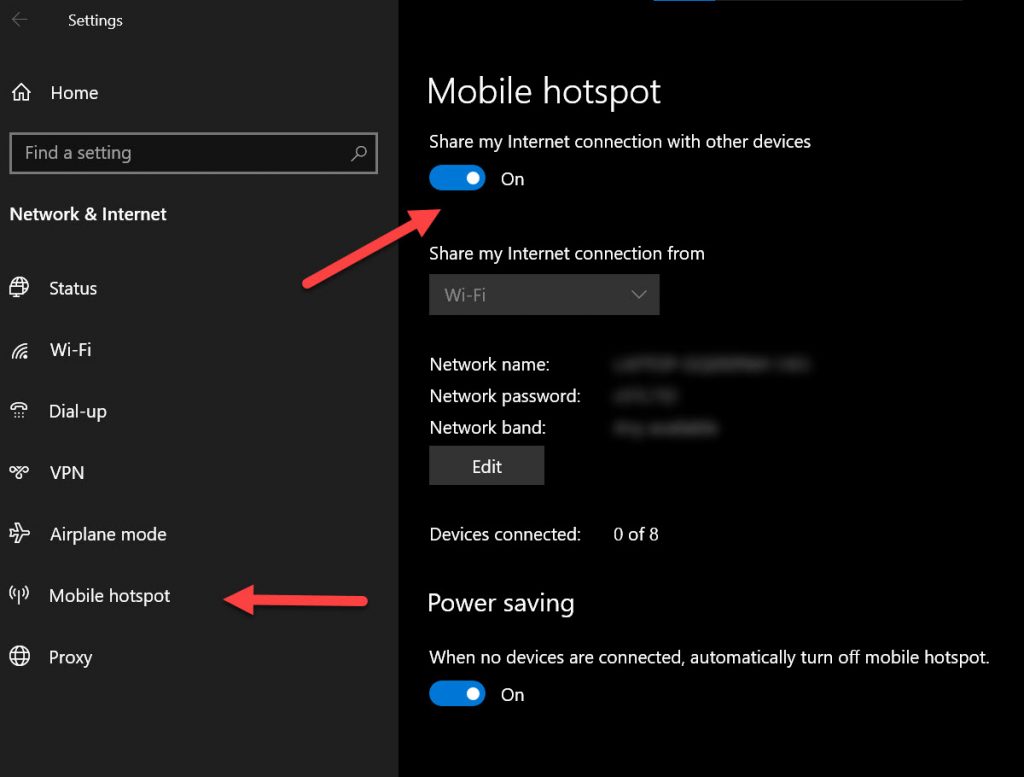
Turn the mobile hotspot on
Open Settings > Network & Internet > Mobile hotspot and turn it on.
-
2
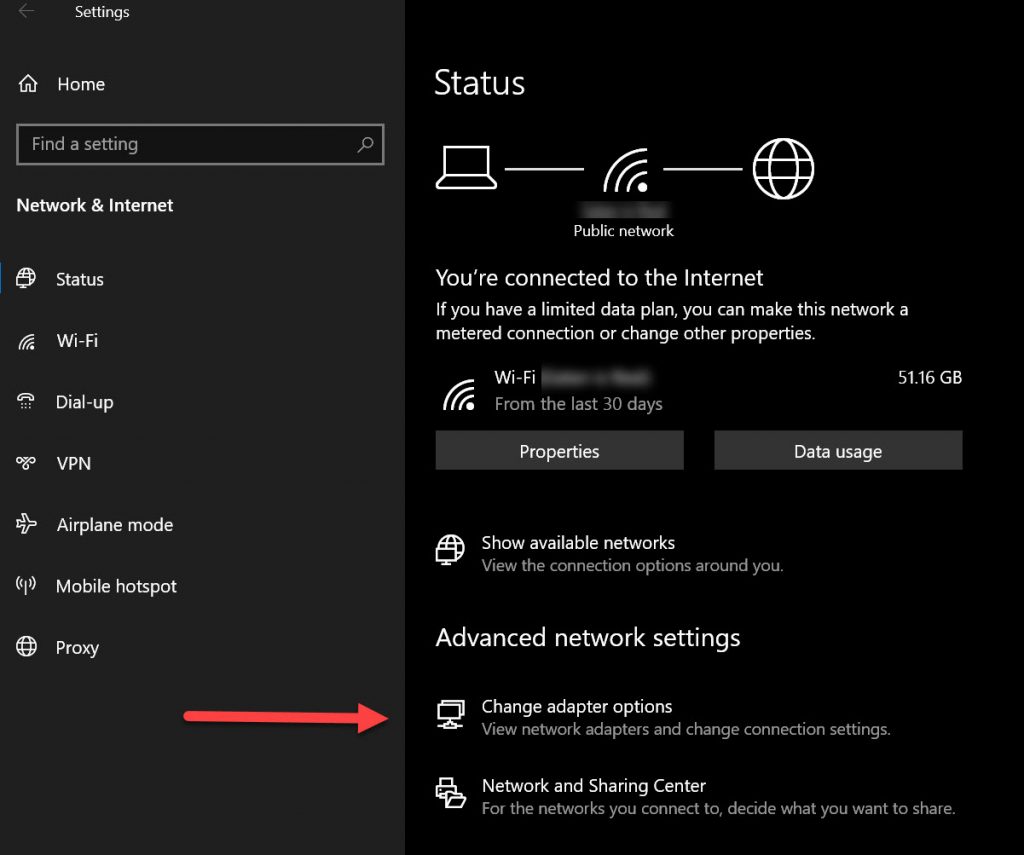
Open adapter options
Still in Settings > Network & Internet, click Change adapter options.
-
3
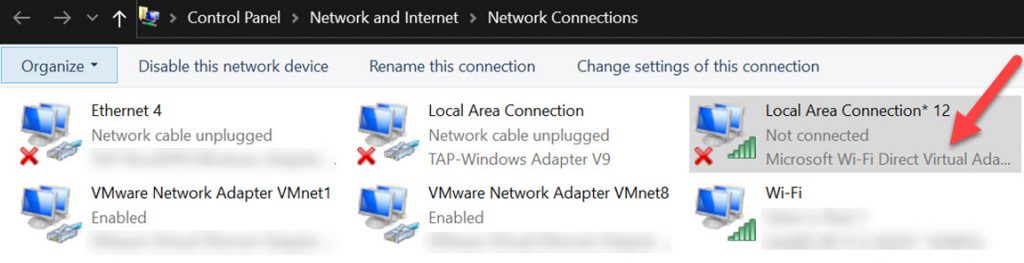
Identify the hotspot adapter
Note the name of the new adapter created by the hotspot — typically Microsoft Wi-Fi Direct Virtual Adapter. You'll need it in step 5.
-
4
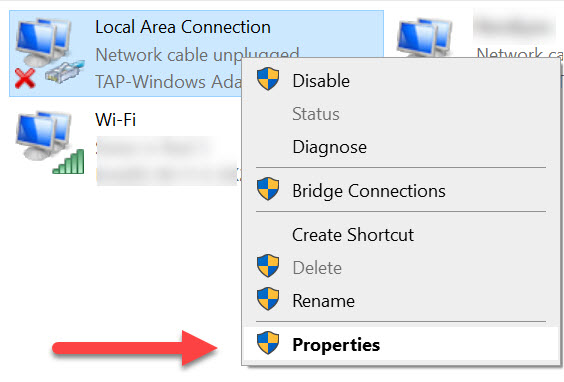
VPN adapter properties
In the same window, right-click the TAP-Windows adapter (the VPN one) and pick Properties.
-
5
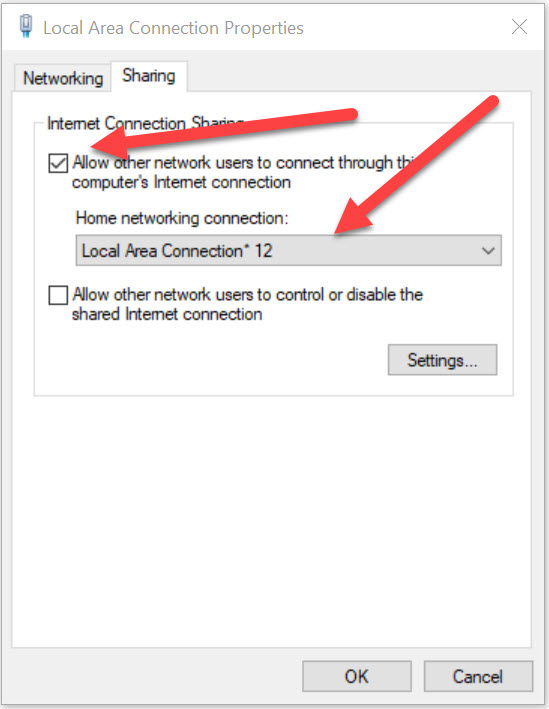
Allow sharing
On the Sharing tab, tick "Allow other network users to connect through this computer's Internet connection". From the dropdown, pick the hotspot adapter you noted in step 3. Click OK to confirm.
That's it. Any device joining your PC's Wi-Fi hotspot now goes through the VPN and uses its IP.